


How to Connect CH340 to Arduino IDE: Complete Setup, Driver Installation, and Troubleshooting Guide
Introduction
This guide is written for makers, students, and engineers who use Arduino-compatible boards with the CH340 USB-to-serial chip. It explains what the CH340 is, how to install drivers safely, how to connect it to Arduino IDE, and how to fix common errors.
Many users struggle with missing COM ports, driver conflicts, or failed uploads. These issues feel random—but they are not. Once you understand how CH340 works, everything becomes predictable. As the old engineering proverb says: “What you understand, you can control.”
Understanding the CH340 USB-to-Serial Chip
The CH340 is a USB-to-UART bridge chip made by WCH. It converts USB data from your computer into serial signals that microcontrollers understand.
Why it’s everywhere:
- Low cost
- Stable performance
- Broad OS support
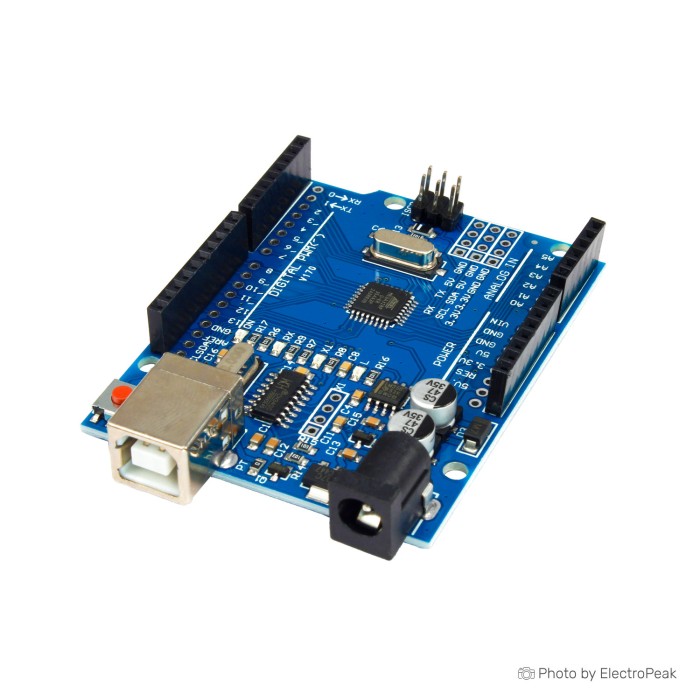
That’s why most Arduino Uno, Nano, and Mega clone boards use CH340 instead of the official USB chips used by Arduino.
CH340 vs other USB-serial solutions
| Chip | Cost | Driver Required | Reliability |
|---|---|---|---|
| CH340 | Very low | Yes (Windows/macOS) | High |
| FTDI | High | Usually no | Very high |
| CP2102 | Medium | Sometimes | High |
| ATmega16U2 | High | No | Excellent |
Bottom line: CH340 is safe, reliable, and suitable for long-term use when drivers are installed correctly.
Pre-Connection Requirements and Checklist
Before installing anything, check these basics. Most failures start here.
Essential requirements
- Data-capable USB cable (not charge-only)
- Stable USB port (avoid unpowered hubs)
- Board powered by USB or external supply
A charging-only cable is the #1 silent killer of CH340 connections.
System compatibility
| OS | Driver Needed |
|---|---|
| Windows 10 / 11 | Yes |
| macOS (Intel & Apple Silicon) | Yes |
| Linux (modern kernels) | No (built-in) |
Identifying Your CH340-Based Arduino Board
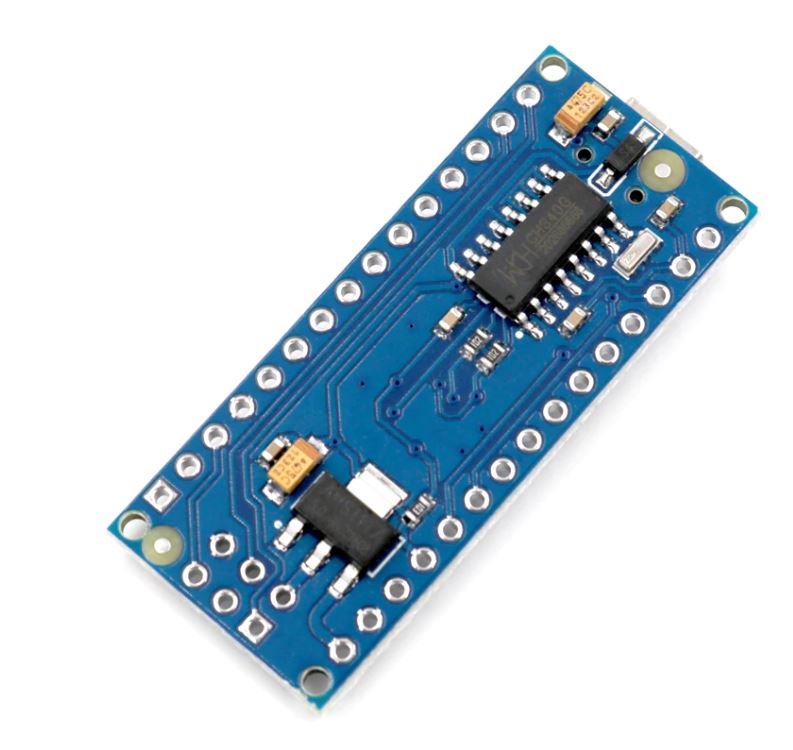
You must confirm your board actually uses CH340.
How to identify it
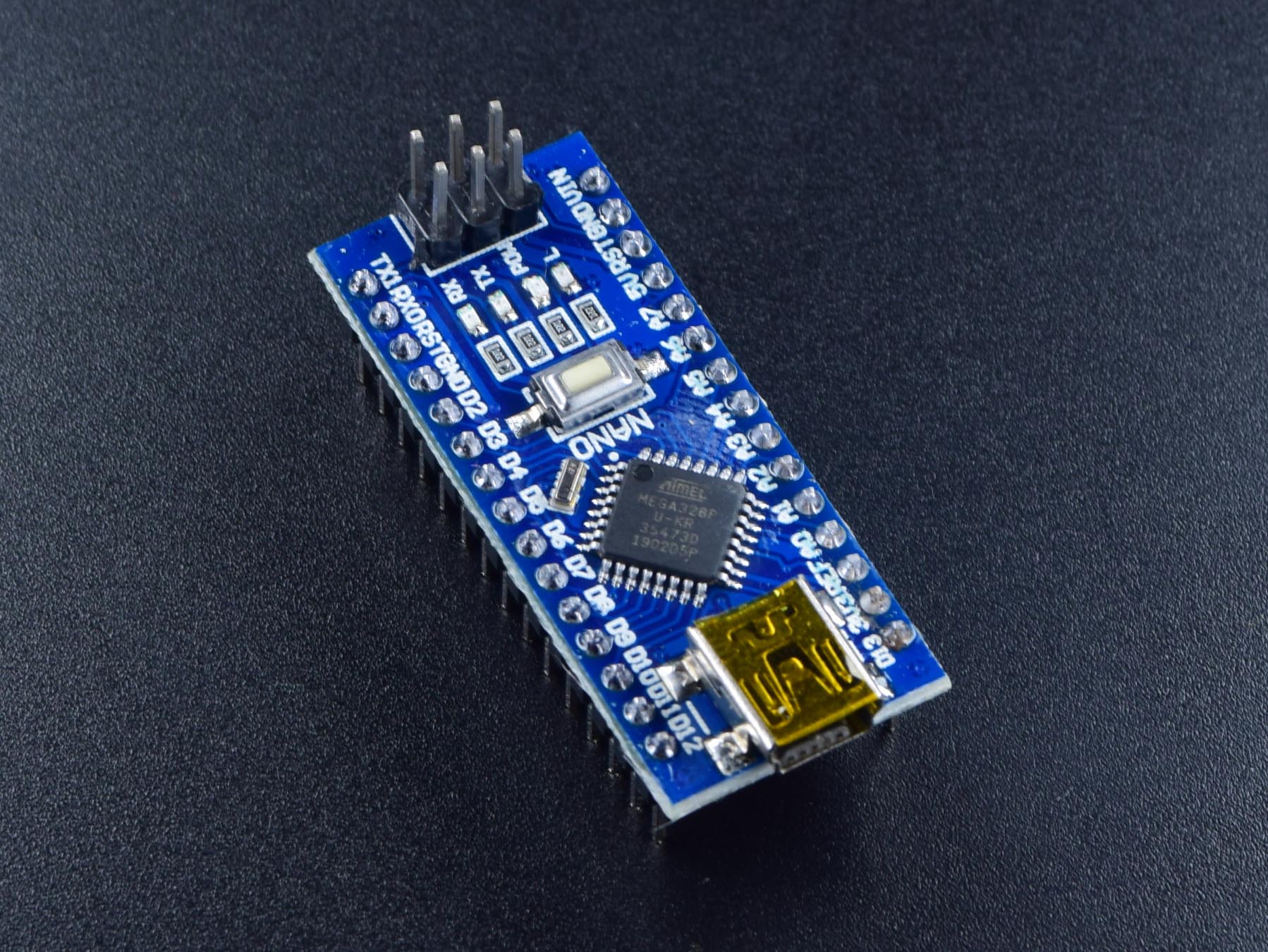
- Look for a small black chip labeled “CH340G/C/N” near the USB port
- Common boards include:
- Arduino Uno clones
- Arduino Nano clones
- Mega 2560 clones
- CH340 USB-to-TTL adapters
CH340 variants
| Variant | External Crystal | Notes |
|---|---|---|
| CH340G | Yes | Most common |
| CH340C | No | Newer, simpler |
| CH340N | No | Smaller packages |
All variants work the same in Arduino IDE.
Installing CH340 Drivers Safely
Always use official drivers. Avoid random download sites.
Driver installation principles
- Install drivers before opening Arduino IDE
- Reboot after installation
- Plug in the board only after drivers are ready
“Trust, but verify.” — Ronald Reagan
After installation, always verify detection.
Installing CH340 Drivers on Windows, macOS, and Linux

Windows 10 / 11
- Install the CH340 driver
- Plug in the board
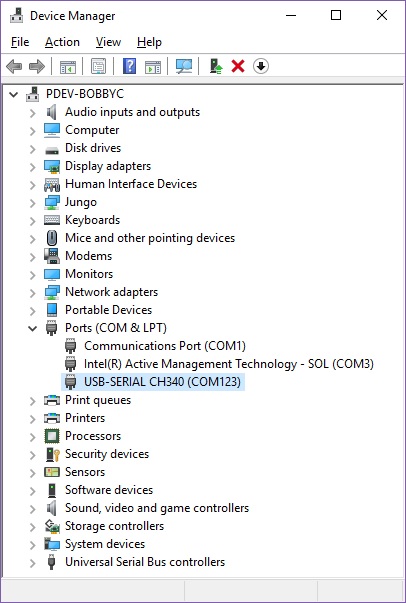
- Open Device Manager → Ports (COM & LPT)
- Look for USB-SERIAL CH340 (COMx)
If missing:
- Try another USB port
- Replace the cable
- Disable driver signature enforcement (rare cases)
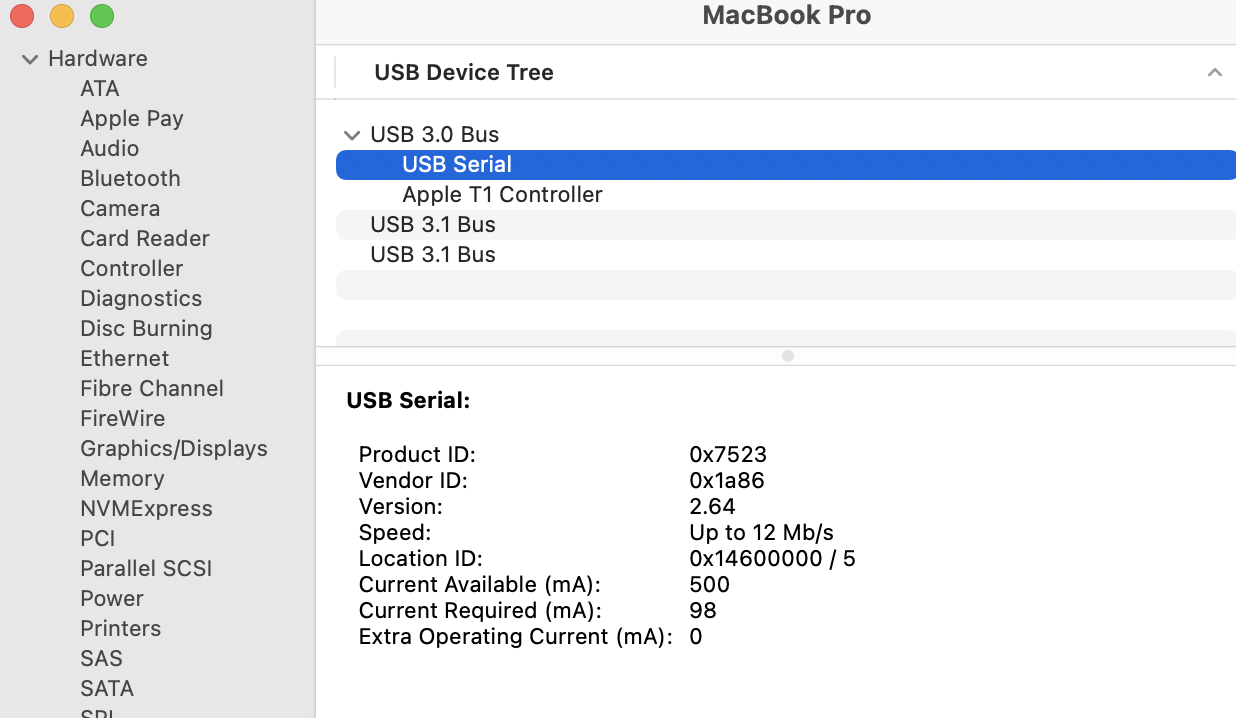
macOS (Intel & Apple Silicon)
- Approve driver in Security & Privacy
- Restart
- Check System Information → USB
Apple Silicon systems require extra permission approval. This is normal.
Linux
Modern Linux kernels include CH340 drivers.
ls /dev/ttyUSB*
Add your user to the dialout group:
sudo usermod -a -G dialout $USER
Connecting CH340 to Arduino IDE

Required IDE settings
- Board: Match your exact board
- Processor:
- Nano clones often need Old Bootloader
- Port: Select the CH340 COM / tty port
Board core installation
Install Arduino AVR Boards from the Boards Manager if missing.
Uploading and Verifying Code
Test the connection with Blink.
What success looks like
- RX/TX LEDs flash during upload
- “Done uploading” message
- LED blinks every second
Common upload behaviors
| Symptom | Meaning |
|---|---|
| Upload fails instantly | Wrong port |
| Sync error | Wrong bootloader |
| Works only after pressing reset | No auto-reset |
Common Errors and Advanced Troubleshooting
Frequent errors explained
- avrdude: ser_open() → Port blocked or missing
- Programmer not responding → Bootloader mismatch
- Port disappears → Bad cable or power issue
Advanced cases
- Bluetooth COM conflicts (Windows)
- macOS kernel extension blocked
- Virtual machines need USB pass-through
Debugging is not guessing. It is elimination.
Best Practices for Stable CH340 Use
- Use short, shielded USB cables
- Avoid noisy power sources
- Don’t hot-plug repeatedly during uploads
- Keep drivers updated, but stable
CH340 vs official Arduino USB
| Factor | CH340 | Official |
|---|---|---|
| Cost | Low | High |
| Stability | High | Very high |
| Firmware updates | Limited | Full |
Choose CH340 for learning and prototyping. Choose official boards for certified products.
Conclusion
Connecting CH340 to Arduino IDE is not hard—once you understand the rules.
Key takeaways
- Always verify your cable
- Install drivers before opening Arduino IDE
- Match board, processor, and port
- Most errors are configuration issues, not hardware failures
With this knowledge, CH340 stops being a problem and becomes a tool.
Control replaces confusion. Confidence replaces trial-and-error.
Next step: Try using CH340 as a standalone USB-to-TTL adapter with ESP8266 or ESP32 and expand your projects further.
